Home › Getting started
Create a channel and go live
From zero to a live stream with OBS in 3 minutes
1. Create the channel
On the Channels page type a name (small letters, digits, - and _ , for example news24) and press Create channel.
2. Copy the server and stream key
Click the channel, open the Connect tab.
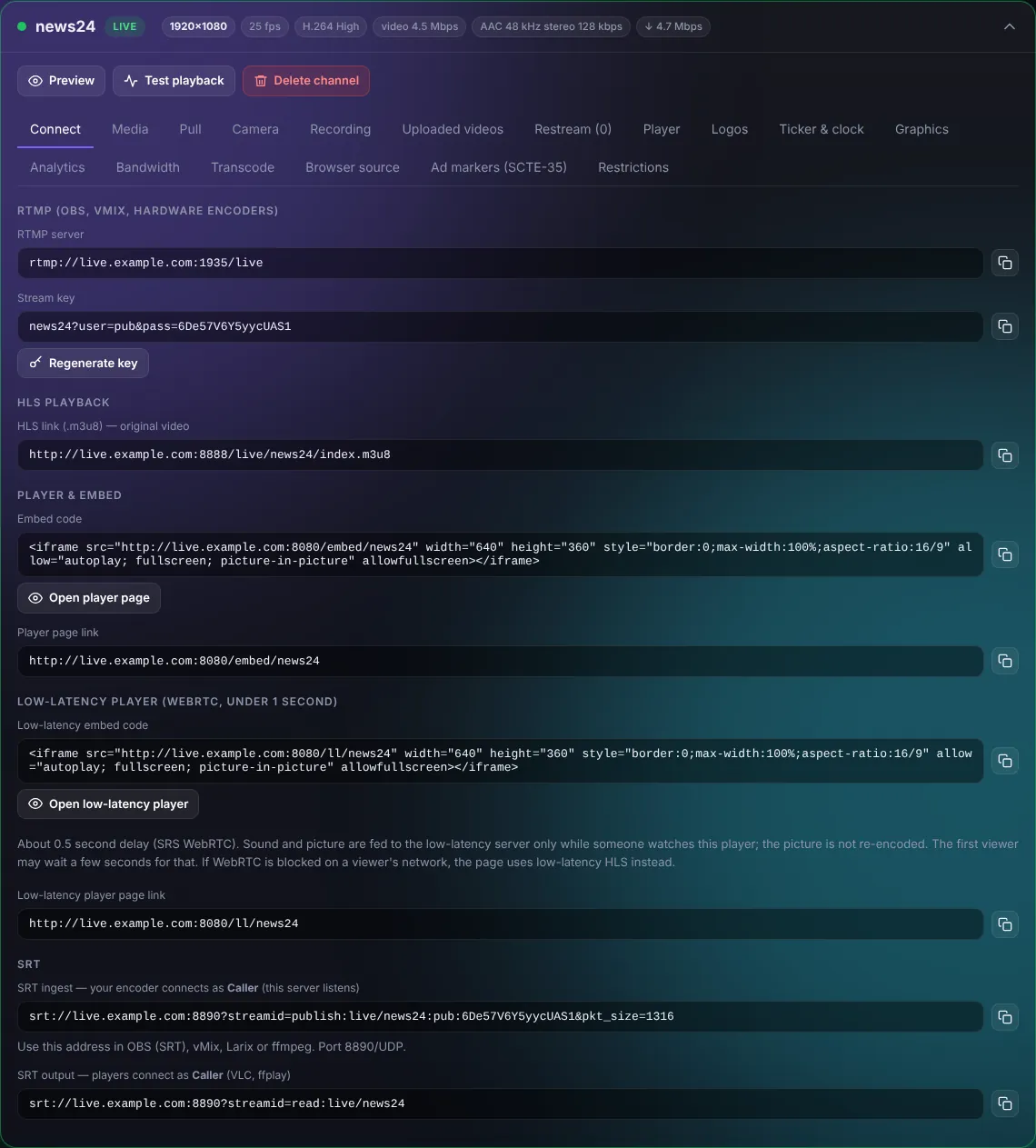
- RTMP server:
rtmp://your-domain:1935/live - Stream key:
news24?user=pub&pass=...(copy the whole line)
3. Set up OBS
- OBS > Settings > Stream > Service: Custom.
- Server: paste the RTMP server. Stream key: paste the stream key.
- Settings > Output: bitrate 2500-4500 kbps, keyframe interval 2 s. Video: 1280x720 or 1920x1080, 25 or 30 fps.
- Press Start streaming.
Within a few seconds the channel shows LIVE with its resolution, frame rate and bitrates.
4. Give viewers the stream
- Embed code: paste it into any website to show the player.
- Player page link: a ready page to share.
- HLS link (.m3u8): for VLC, smart TV apps, IPTV players and the OTT platform.
- Low-latency player: under one second delay (WebRTC).
TipKeep the stream key secret. If it leaks, press Regenerate key and update your encoder.